Holded
Holded is mainly used by freelancers, small business owners, and accountants in Spain and Latin America to handle invoicing, accounting, inventory, CRM, and payroll. It's particularly popular among Spanish SMEs and freelancers looking for a modern, all-in-one cloud ERP with direct AEAT integration for submitting tax declarations and built-in Verifactu compliance.
Features
- Authenticate via an API Token
- Retrieve invoice data via API
- Your customer is redirected to the payment page after clicking the link on the invoice
- Your customer is redirected to the payment page after clicking the link in the mail send with the invoice.
Setup
Connecting your account to Pay In BTC
We need to perform two steps to connect your Holded account to payinbtc.me. Both steps are described below.
Retrieve API Key
- Click on your Company name in the top left corner.
- Select Settings
- In the menu that shows on the right select Developers
- In the next menu click Credentials
- Press New API Token
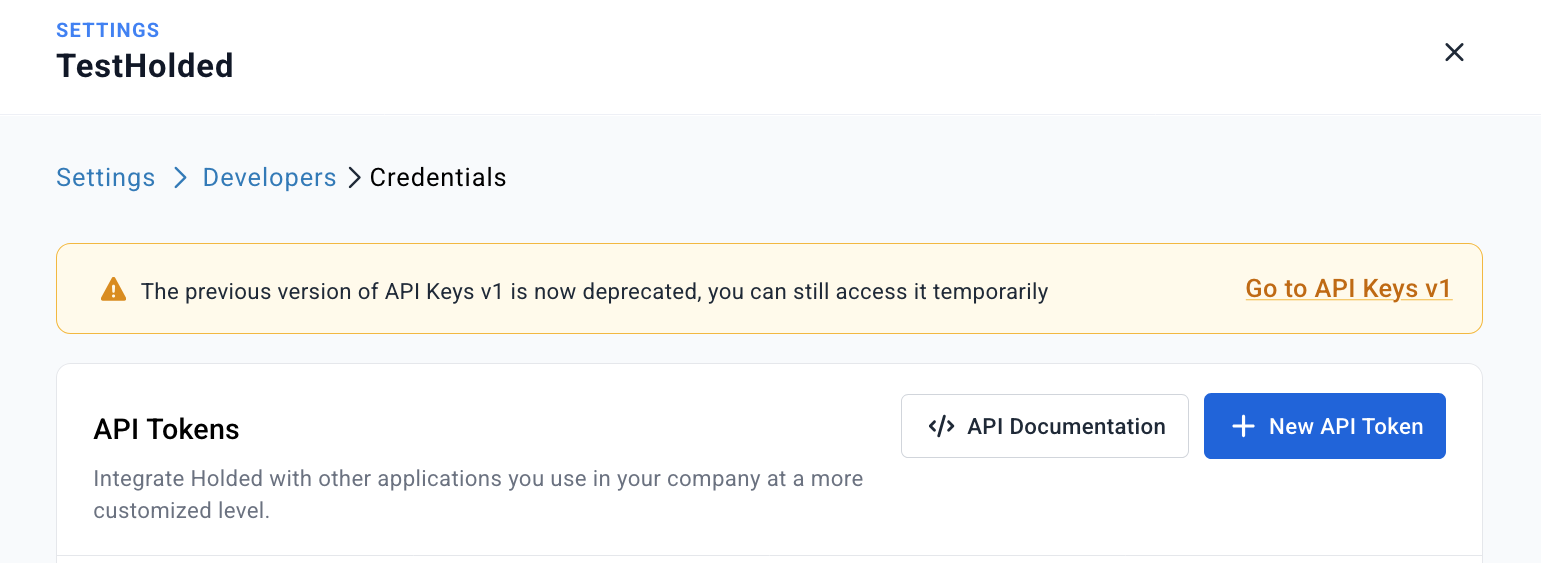
- Enter a name of the API Token in the field Description
- Next look for Sales and then Invoices
- Select Read to make sure to only allow us to read the invoice data. The result should look like this:
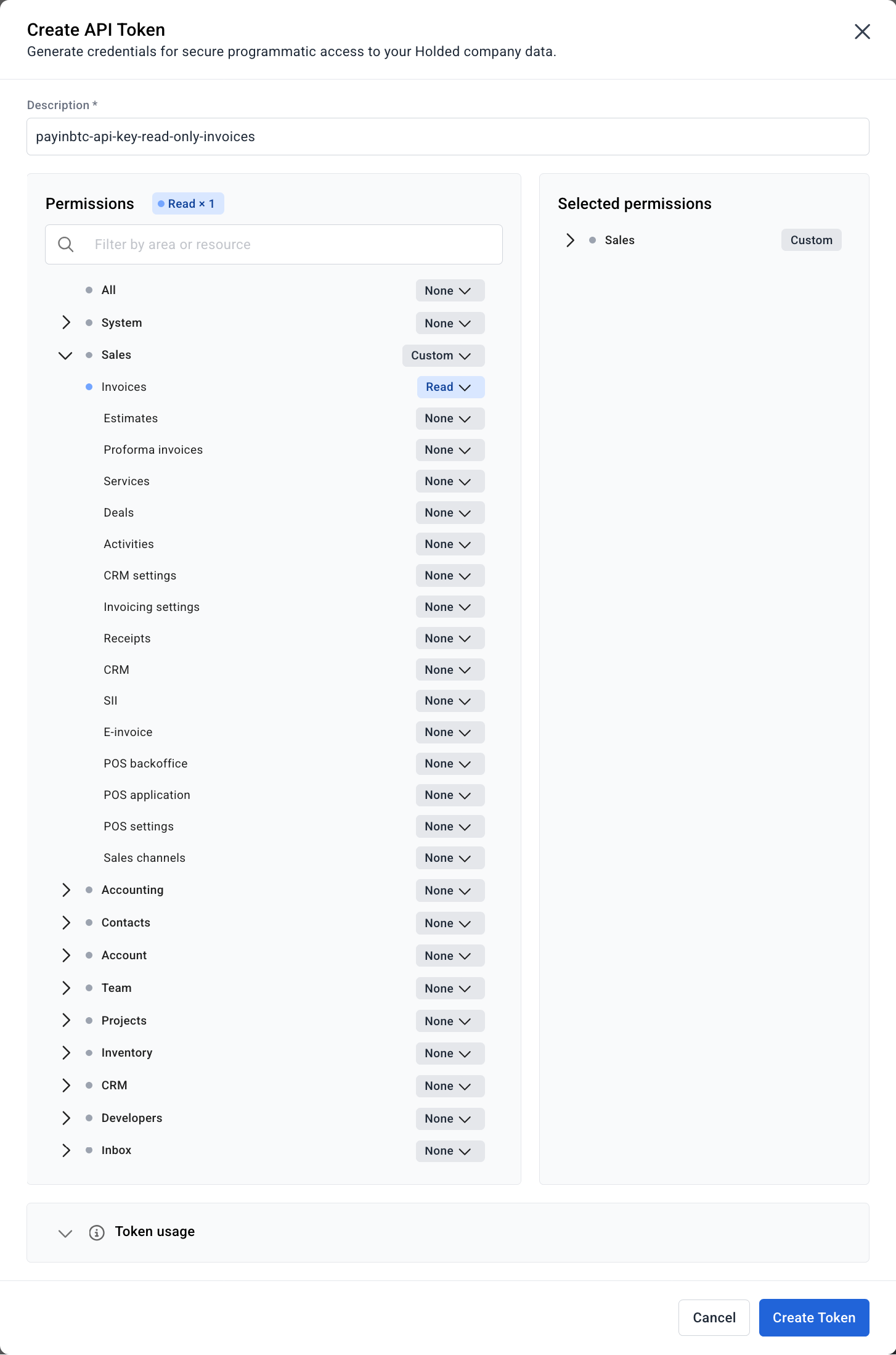
- Now press Create Token
- You can now copy the token. Paste in on a temporary location where you can easily access it during the setup process.
Setup invoice
Within Holded you have several options to customize the invoice. You can add the Bitcoin payment link to the invoice as a payment option. But you can also choose to put it in the footer.
Adding to the footer
- Click on your Company name in the top left corner.
- Select Settings
- In the menu that shows on the right select Invoicing
- In the next menu click Document Templates
- Select the template you have in use
- Press Fields, You see now the option to change the Footer
- Add the payment link to this field. Please see account activation email for the details about this link.
- Press Save to store the change.
Adding as payment method
- Click on your Company name in the top left corner.
- Select Settings
- In the menu that shows on the right select Invoicing
- In the next menu click Payment Methods
- Press button Add Payment Method
- Fill the screen below with the required information.
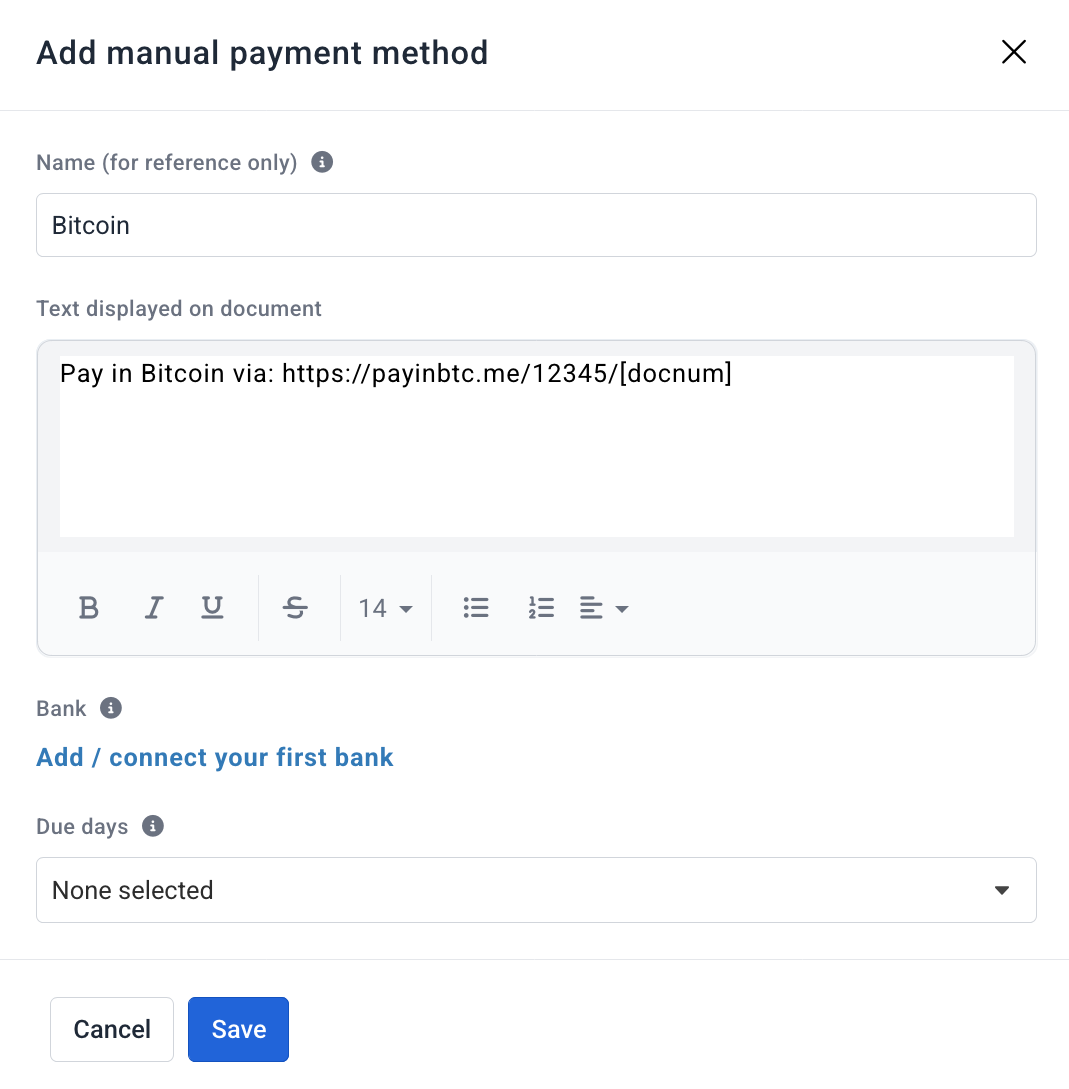
- Press Save to store the change.
- At invoice level you have to make sure Bitcoin is selected as payment method.
Setup email
- Click on your Company name in the top left corner.
- Select Settings
- In the menu that shows on the right select Account
- In the next menu click Email setup
- You can now choose to edit the existing email template or create a new one. It really depends on your current configuration, how to proceed from here. Keep in mind you can use [docum] for the invoice number on your template.
Done! You are now ready to accept bitcoin via your invoices. Test it out with a test invoice.
Start accepting bitcoin with Holded
Not a customer yet? See pricing, the supported wallets and what you get on the Holded integration page at payinbtc.me.