Zoho Books
Zoho Books is the full accounting companion to Zoho Invoice. Popular with growing SMBs that need more than just invoicing. It covers the complete bookkeeping picture: accounts payable and receivable, bank reconciliation, tax compliance, and financial reporting. It's widely used across India, the US, and other markets where Zoho has strong traction, and integrates natively with the broader Zoho suite making it a natural fit for businesses already using Zoho CRM or Zoho Inventory. We support the following Zoho regions:
- United States
- Europe
- India
- Australia
- Japan
- Canada
- China
- Saudi Arabia
Features
- Authenticate via OAuth
- Retrieve invoice data via API
- Your customer is redirected to the payment page after clicking the link on the invoice
- Your customer is redirected to the payment page after clicking the link in the mail send with the invoice.
Connecting your account to Pay In BTC
In step 2 of the activation procedure you need to connect Zoho Books to Pay In BTC. Next to that we need the company id. The company id can be retrieved as follows:
- Click on your company name in the top right corner
- You see an overview with all organisations you have access to
- Search for the organisation you want to use and click on the Copy icon
- Paste this in the Organisation ID field in step 2.
The next step is to connect Zoho Books to Pay In BTC. This is done in the following setps:
- Click the Connect button
- You'll be redirected to the Zoho Books login page — log in if you aren't already
- Approve the access request when prompted
- You'll be sent back to payinbtc.me automatically — your account is now connected
Add bitcoin payment link to invoice
We have to add the bitcoin payment link to the invoice. To set this up, perform the following steps.
- Logon
- Go to Settings
- Find the menu Customization and click PDF Templates in the menu shown
- Select Invoices and look for the Default
- Move with the mouse over the template and click on the Edit button
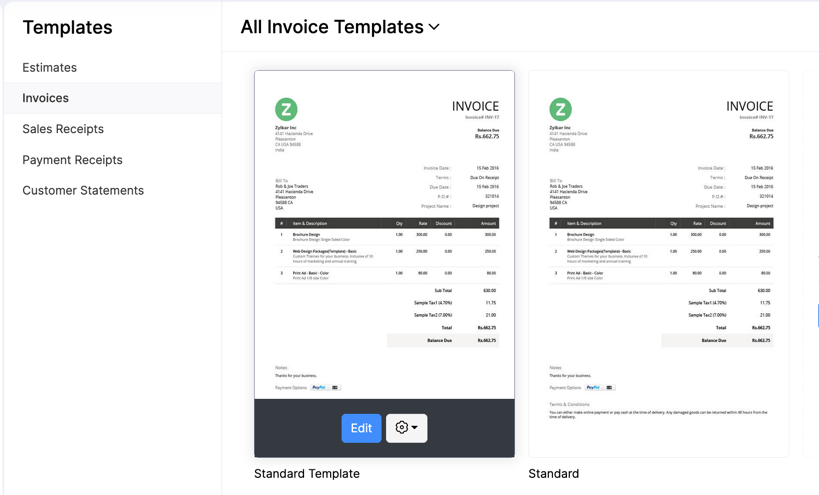
- The invoice template is shown. Click Other Details on the left side of the screen
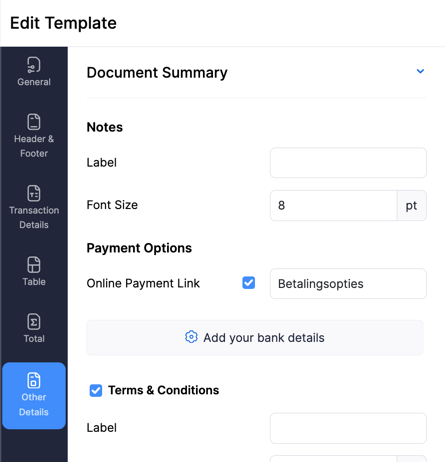
- Press button Add you bank details
- Add here our payment link. Please see account activation email for the details about this link.
- Select the full link, press CTRL+C and click the Create Link icon.
- A new popup with url is shown. Click this field and press CTRL+V
- Press Preview to show the result
- Press Save in the top right corner to save the template
Add to email
You can add the payment link to the email that is sent to the customer with the invoice.
- Logon
- Go to Settings
- Find the menu Customization and click Email Notifications in the menu shown
- Select the template Invoice Notification
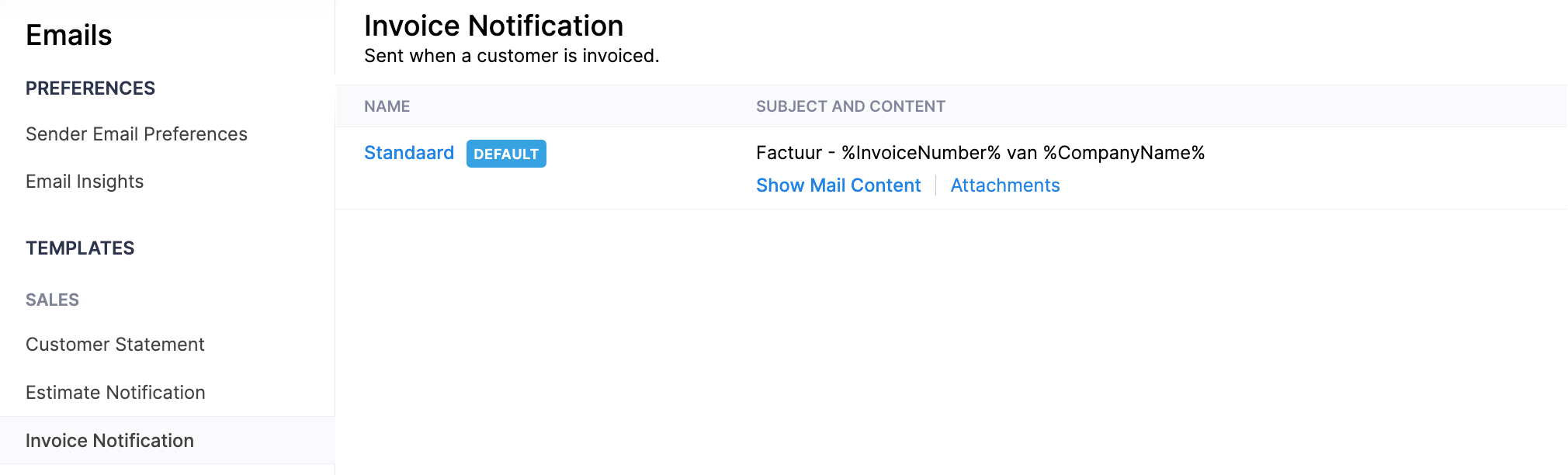
- Click the link Show Mail Content
- Add in the text field our payment link. Please see account activation email for the details about this link.
- Press Save
Done! You are now ready to accept bitcoin via your invoices. Test it out with a test invoice.