Moneybird
Moneybird is mainly used by freelancers and small business owners (SMEs), especially in the Netherlands, to handle invoicing, VAT returns, and day-to-day bookkeeping. It is also adopted by software-driven companies and online services that integrate their billing and subscription flows with Moneybird’s API for automated accounting.
Features
- Authenticate via OAuth
- Retrieve invoice data via API
- Your customer is redirected to the payment page after clicking the link on the invoice
- Your customer is redirected to the payment page after clicking the link in the mail send with the invoice.
Setup
Connecting your account to Pay In BTC
In step 2 of the activation procedure you need to connect Moneybird to Pay In BTC. This is done in the following setps:
- Click the Connect button
- You'll be redirected to the Moneybird login page — log in if you aren't already
- Approve the access request when prompted
- You'll be sent back to payinbtc.me automatically — your account is now connected
Add bitcoin payment link to invoice and invoice email
The last step is to add the bitcoin payment link to the invoice. To set this up, perform the following steps.
- Logon into Moneybird with your credentials
- If you have multiple companies in Moneybird, make sure you select the right one before you take the next steps
- Select Settings in the navigation menu
- Select Workflows tile
- In the next screen select the active Invoice Workflow
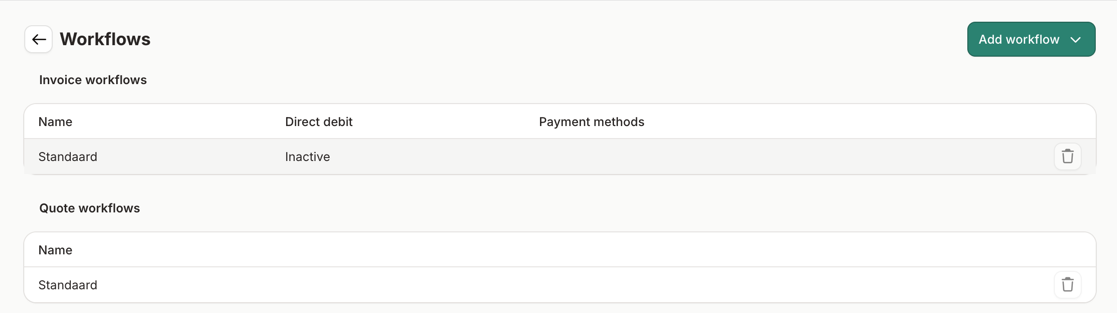
- The following screen is shown.
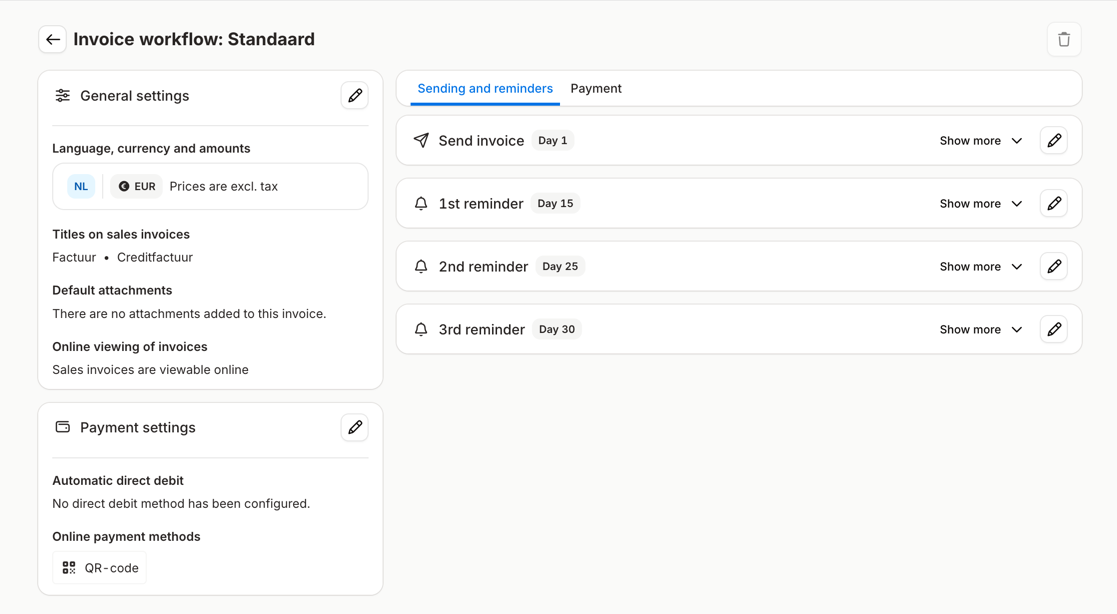
- Click on the pencil icon next to Send invoice. The editor of the payment conditions and the email is shown
- Add the payment link to the "Payment conditions" and "Email message for invoices" field a text with the link to us. Please see account activation email for the details about this link.
- If desired you can add the samee text to the reminders that are present.
Done! You are now ready to accept bitcoin via your invoices. Test it out with a test invoice.